Google Calendar Overview
Even though I’m still the person telling everyone, “Just type sheets.new in the address bar", I didn't know this till today! So I'm sharing it with you. Written with ChatGPT help.
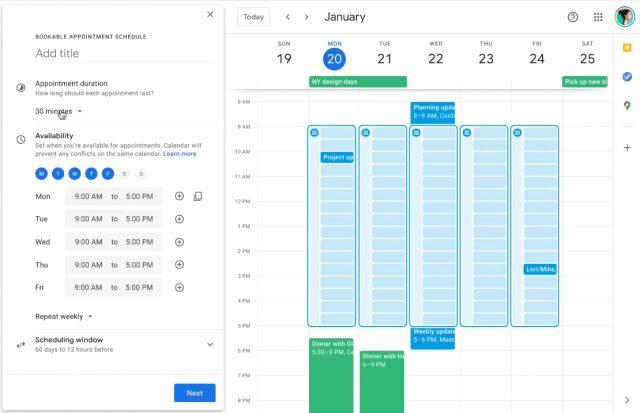
Who needs Calendly?
Google Appointment Schedules is built directly into Google Calendar. For people who simply need to schedule with minimal back and forth, it does virtually everything Calendly does... for free.
I'll cover setup, sending the links, and notes.
How to Set Up Your Appointment Schedule
Open Google Calendar on a computer.
Click Create in the upper-left corner.
Select Appointment schedule.
Give the schedule a name, such as 30-Minute Intro Call.
I use "27-Minute Call" because I know clients always run over the allotted time.
Choose the length of each appointment.
Under General availability, choose the days and hours when people can book you. You can create different availability periods for different days.
Choose the time zone for that schedule.
Adjust optional settings such as how far in advance someone can book, buffer time between meetings, and maximum appointments per day.
The default is 60 days. You probably want to change it to less than 30 so you don't accidentally book too far into the future.
Click Next.
Choose where the meeting takes place. For online calls, you can have Google automatically create a Google Meet link. That's easiest.
Add a description and decide what information guests need to enter when booking.
Click Save.
Google then creates a public booking page showing only the times when you are available. If a time conflicts with an event Google is checking on your calendar, that time can be removed from the available options.
How to Send Someone Your Booking Link
Once the schedule exists, find it under Booking pages in Google Calendar and open the booking page. You can then copy its link and send it anywhere. Google also supports embedding the booking page directly on a website.
The person opening the page sees your available appointments and chooses one. Importantly, Google displays the available times in the visitor's own time zone, so you generally do not need to calculate the conversion yourself.
Making Different Types of Appointments
Free personal Google accounts are more limited when it comes to multiple booking pages. Some of Google's more advanced appointment-scheduling features require an eligible Google Workspace or Google One subscription.
For those of you also forced into Google One, I recommend creating multiple appointment schedules, each with its own name, duration, availability, and booking page.
For example, I recommend a setup like:
US Calls: Monday–Thursday, 4:00–8:00 PM your time
Europe Calls: Monday–Thursday, 9:00 AM–1:00 PM your time
Alternatively, you can also split them into 15-, 30-, 45-, and 60-minute calls and send the link based on how long you estimate is needed.
Final Notes
Calendly and its many competitors are more useful when scheduling is part of a larger sales or business workflow. Depending on the plan, Calendly offers things like round-robin assignment among team members, more sophisticated routing, deeper CRM integrations, team scheduling analytics, and more advanced automated workflows.
It's also like a fancy business card. Calendly is expected. Google feels cheap.
That said, if what you need is basically "Here are the times I'm free. Pick one," Google Appointment Schedules does the job extremely well. I’ll call it now: It will put Calendly out of business.
Just remember to mark all your calendar events as "Busy" on your personal calendar, since they might be missing from your work calendar.